Do You Have to Take Laptop Out of Sleeve at Airport Tsa Rules
You’ll usually need to remove your laptop from a bulky or hard-shell sleeve and place it in a bin for TSA X‑ray screening, though thin, clear sleeves may be allowed if signage or an officer permits it. Chargers and cables should be loose for quick inspection, and TSA PreCheck can often let you keep laptops packed. Rules vary by airport and country, so follow posted instructions and officer requests—keep going to learn practical tips and exceptions.
Quick Answer: Do You Have to Remove Your Laptop at TSA?
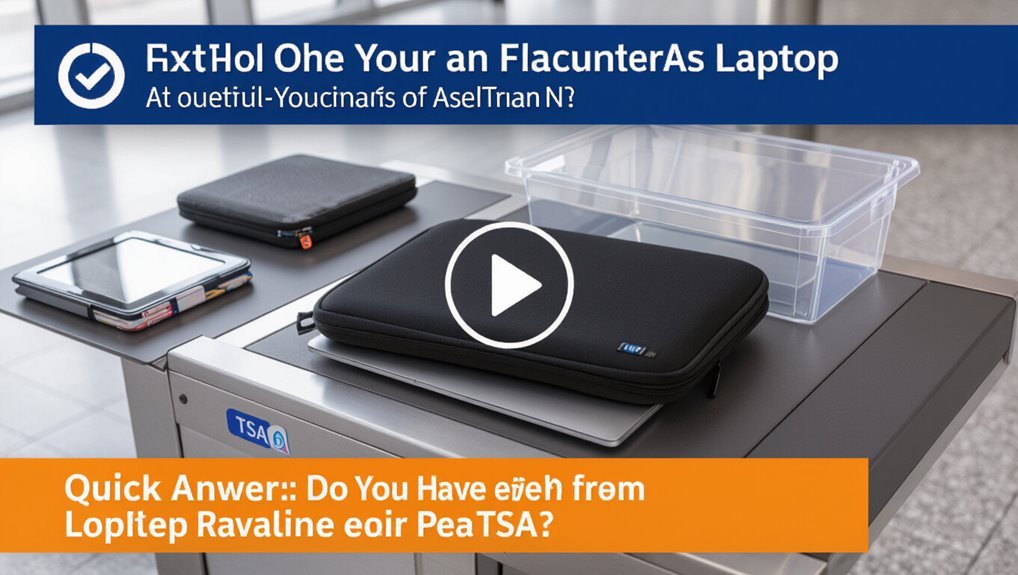
Wondering whether you have to remove your laptop at TSA? You usually do: take laptops out of bags and place them in bins unless screening staff tell you otherwise.
Some sleeved laptops can stay inside if allowed by signage or checkpoint instructions.
Be prepared to remove devices quickly, follow officer directions, and place chargers separately to speed up screening and avoid delays.
How TSA X‑Rays Laptops (Simple Overview)
Although TSA X‑ray machines look intimidating, they work on a simple principle: they pass low-dose X‑rays through your laptop to create a monochrome image that screening officers and automated software use to spot dense or suspicious items.
You place the laptop on a conveyor; detectors measure X‑ray absorption, rendering contrasts showing batteries, metal, or organic materials so officers can decide if further inspection’s needed.
TSA Rules vs. Airport‑Level Screening
You’ll follow TSA screening procedures as the baseline for what’s allowed and how laptops are screened.
Remember, individual airports can add their own rules or steps, so screening can feel different depending on where you fly.
If you’re unsure, check both TSA guidance and the specific airport’s security info before you go.
TSA Screening Procedures
When you go through airport security, TSA sets federal screening standards but individual airports and airlines can add procedures or equipment that change how you’re processed, so it helps to know both the baseline rules and any local variations. You’ll place electronics in bins, remove liquids, and follow officer instructions. Check signage and be ready for additional screening.
| Step | Action | Tip |
|---|---|---|
| 1 | Place laptop in bin | Unzip sleeve |
| 2 | Remove liquids | 3-1-1 rule |
| 3 | Follow officer | Answer promptly |
Airport Security Variations
Because TSA sets the baseline for screening, individual airports and airlines still have leeway to add procedures, staffing, or equipment that change how you’re processed—so expect variations in checkpoints, signage, and officer instructions from one airport to another.
- You might be asked to remove sleeves.
- Some airports use advanced scanners.
- Staffing levels affect wait times.
- Follow local officer directions promptly.
International Differences: Screening Outside the U.S
When you travel outside the U.S., expect airports to have different laptop screening rules — some will ask you to remove the device from its sleeve, others won’t.
Local security procedures and equipment determine what’s required, so check the airline or airport website before you go.
Being prepared saves time and reduces surprises at foreign checkpoints.
Airports’ Varied Laptop Rules
Although many countries follow similar security logic, airports outside the U.S. handle laptop screening in different ways, and you should expect variation in whether you’ll take your device out of its sleeve, place it in a bin, or keep it inside a clear laptop-only tray.
- Remove laptop at some airports.
- Leave laptop in sleeve elsewhere.
- Use clear tray systems sometimes.
- Follow on-site signage and staff.
Local Security Procedures
Security checkpoints vary widely outside the U.S., so you should expect different laptop-handling rules depending on the country and even the airport.
Check local airport websites or contact your airline before travel. Some places require laptops removed, others allow screened-in sleeves or closed bags if smaller than carry-on.
Follow staff instructions, arrive early for possible extra checks, and be prepared to power up your device.
When TSA PreCheck Lets You Leave Your Laptop Packed
Curious when you can keep your laptop in its sleeve during screening? You can skip removing it with TSA PreCheck in many cases, but rules vary by checkpoint and device type.
Consider these guidelines:
Consider these guidelines before keeping your laptop in its sleeve during screening.
- You’re enrolled in TSA PreCheck.
- The sleeve is soft, not bulky.
- Screening officers confirm no additional inspection.
- You follow any airport-specific instructions.
Which Laptop Sleeves Must Be Removed?
You’ll usually need to remove laptops from sleeves that have built-in padding, a hard-case, or a clamshell design because those can hide components from X-ray images.
Soft fabric or simple slip sleeves, on the other hand, are often fine to leave on unless an agent asks otherwise.
If you’re unsure, be ready to take the laptop out to speed up screening.
Sleeves With Built-In Padding
Think of padded laptop sleeves as protective cases that can complicate the TSA screening process.
You’ll usually need to remove laptops from thickly padded sleeves so agents can clearly see electronics.
Consider these steps:
- Check padding thickness.
- Remove laptop if padding obscures contours.
- Use a thin sleeve for carry-on trays.
- Cooperate with agent requests promptly.
Hard-Case Or Clamshell Sleeves
If the sleeve snaps shut or has a molded shell, expect TSA to ask you to take the laptop out so agents can get a clear view.
Remove the device, place it in the bin, and follow any officer instructions promptly to avoid delays.
Soft Fabric Or Slip Sleeves
Although soft fabric or slip sleeves usually let X-ray machines clearly show your laptop’s outline, TSA agents may still ask you to remove the device if the sleeve hides ports, accessories, or folds in a way that obscures the image.
- If sleeve’s thin, keep laptop inside.
- If bulky or folded, remove it.
- Remove chargers or dongles separately.
- Follow agent instructions to speed screening.
When Sleeves Can Stay On
You can usually keep a soft or thin sleeve on your laptop when security screening if the device can be clearly seen and lays flat in your carry-on or bin; TSA agents often allow sleeves that don’t add bulk or hide the laptop’s edges.
If screen, ports, and overall shape are visible, leave it in.
Remove accessories, tags, or thick padding that could trigger inspection.
Hard‑Shell Laptop Cases: TSA Expectations
If your laptop sits in a rigid, molded case rather than a slim sleeve, expect TSA to ask you to remove it for separate screening more often. You should:
- Open rigid shells when requested.
- Remove locks or clasps beforehand.
- Place the laptop flat in the bin.
- Cooperate with additional inspection promptly.
Rigid cases block clear X‑ray images, so follow instructions.
Soft and Padded Sleeves: What to Expect
If your laptop’s in a soft or padded sleeve, you’ll usually be asked to remove it for X‑ray screening just like a bare laptop.
TSA officers may ask you to open the sleeve so the device is clearly visible, but lightweight padding won’t typically block the image.
Keep your sleeve accessible and be ready to hand the laptop to security if they request a closer look.
Sleeves And Security Screening
Wondering what to expect when your laptop’s in a soft or padded sleeve? You’ll often be asked to remove it, but rules vary. Expect brief checks and possible bag inspection.
- Officer asks you to take it out.
- Sleeve may stay on if thin.
- Thick padding usually requires removal.
- Follow instructions; inspections are quick.
Handling Padded Cases
Most of the time you’ll be asked to remove a laptop from a soft or padded sleeve so TSA agents can get a clear X-ray image; thin sleeves may stay on, but anything with substantial padding, extra pockets, or a hard insert usually means you’ll be asked to take the device out for separate screening.
Pack cables separately, unzip pockets, and have the laptop accessible to speed inspection.
Laptop Backpacks: Separate Compartments Explained
When you’re packing for a flight, a laptop backpack with a dedicated, padded compartment can make TSA screening and everyday use much smoother.
- Use the compartment to keep your laptop accessible.
- Remove clutter so screens are visible on X-ray if asked.
- Keep chargers in separate pockets for quick access.
- Secure zippers and straps to prevent shifting during inspection.
Bags With Built‑In Laptop Zippers: What to Do
If your bag has a built‑in zipper sleeve, keep it unzipped so the laptop is visible for the TSA X‑ray.
Officers may still ask you to remove the device for closer inspection, so be ready to slide it out quickly.
To speed screening, organize cords and accessories separately and know your bag’s zipper layout before reaching the checkpoint.
Built‑In Sleeve Visibility
Because built-in laptop sleeves often sit against the bag’s exterior, TSA agents need to see whether your device is inside a dedicated compartment or just a padded pocket—so you should be ready to unzip that section or pull the laptop out when asked.
- Check sleeve zipper style.
- Keep laptop accessible.
- Remove bulky covers.
- Close other compartments.
TSA Inspection Process
Now that you know how to make a built‑in sleeve visible, here’s how TSA typically inspects bags with built‑in laptop zippers:
Officers will scan the bag as presented; if the laptop image is clear, they’ll let it pass.
If unclear, they may ask you to unzip slightly, reposition, or remove the device for separate screening.
Always follow their instructions calmly to speed the process.
Tips For Quick Screening
When you’re heading through security with a bag that has a built‑in laptop sleeve, prepare the bag so the laptop’s outline is as visible and unobstructed as possible to speed screening. You should:
- Unzip the sleeve fully before reaching the belt.
- Move papers or chargers away from the laptop.
- Face the laptop toward the scanner.
- Close other compartments to reduce clutter.
Carry‑Ons That Trigger Laptop Removal
Which carry‑ons will make you pull out your laptop at TSA screening?
Bags with multiple compartments, padded sleeves that obscure outlines, tote bags stuffed with clothing, and cases with other electronic devices often prompt removal.
If your laptop sits under dense items or inside a bulky backpack, agents will ask you to take it out for clear X‑ray imaging to speed inspection and avoid delays.
Screen Size and Thickness: Why It Matters
If your bag’s layout or padding makes agents pull your laptop out, you’ll also find that screen size and device thickness affect how you’ll be asked to handle it at the checkpoint.
- Larger screens may need removal for clear x‑ray imaging.
- Thick devices can obscure internal components.
- Slim laptops often stay in sleeves if visible.
- Be ready to remove bulky cases or padded sleeves.
Multiple Laptops and Large Electronics
Carrying more than one laptop or a mix of large electronics changes how TSA handles your screening, so be prepared to separate devices and remove them from sleeves or cases on request.
You’ll place each large device in the bin or on the conveyor separately. Expect extra inspection time; follow officer instructions, keep device compartments accessible, and label or organize gear to speed the process.
Batteries & Power Banks: TSA Rules
You’ll need to know TSA rules for carry-on power banks, since they’re allowed only in your carry-on and not in checked baggage.
You should also follow spare battery rules, keeping loose lithium batteries in your carry-on and protecting terminals against short circuits.
Check watt-hour limits and airline-specific policies before you fly.
Carry-On Power Banks
Wondering whether you can bring a power bank through airport security? You can carry power banks in carry-on bags only; packed batteries in checked luggage aren’t allowed.
Follow TSA limits and airline rules on capacity and quantity.
- Keep it in carry-on
- Check mAh/Wh limits
- Protect terminals
- Declare high-capacity units when asked
Spare Battery Rules
How should you handle spare batteries when going through TSA?
You must carry lithium spare batteries in your carry-on, not checked baggage.
Protect terminals with tape or original packaging to prevent short circuits.
Follow airline limits for watt-hours and quantity; get airline approval for larger batteries.
Power banks count as spare batteries, so treat them the same.
Declare if required.
Metal Parts and Accessories That Cause Alarms
Although most laptops pass through TSA screening without issue, metal parts and accessories on or around your device can trigger alarms and prompt additional inspection.
Although most laptops clear TSA easily, metal parts or accessories can trigger alarms and extra inspection.
- Remove detachable metal stands or brackets before screening.
- Take off decorative metal badges or heavy zippers.
- Empty coin pockets near the laptop compartment.
- Stow metal pens and multi-tools in checked baggage or a separate bin for inspection.
Cables, Mice, and Chargers: Packing for X‑Ray
1. Pack cables, mice, and chargers so screening’s smooth: coil cords neatly, stash small items in a clear pouch, and place bulky chargers beside—not atop—your laptop.
You’ll speed inspection if accessories are visible and separated from clothes. Leave wireless mice with batteries installed per airline rules.
If asked, remove accessories into the bin; otherwise keep them grouped for efficient x‑ray.
How Scanners Flag Laptops (False Positives)
Keeping your cables and chargers visible helps, but scanners still sometimes flag laptops for additional screening. You can reduce false positives by understanding common triggers:
Keep cables and chargers visible—understand common scanner triggers to reduce false positives and minimize extra screening.
- Dense cases or sleeves that obscure shapes.
- Multiple electronic items clustered together.
- Unusual internal components or aftermarket parts.
- Overlapping items that create ambiguous silhouettes.
Follow clear packing to minimize extra checks.
What Happens If TSA Asks You to Remove It?
If TSA asks you to remove your laptop from its sleeve, calmly pull it out and place it in a separate bin as instructed.
You’ll usually be directed to the standard X-ray lane or, for smaller airports or special cases, a manual inspection or alternate screening area.
Cooperating speeds things up and gives you the option to request a private screening if you prefer.
When TSA Requests Removal
When a TSA officer asks you to remove your laptop from its sleeve, comply promptly and place the device in a separate bin for X-ray screening so officers can get a clear view without fabric or cushioning obscuring the image.
- Stay calm and follow instructions.
- Keep cords and peripherals packed.
- Watch for officer guidance.
- Repack quickly once cleared.
How To Comply
Although the request can feel inconvenient, follow the officer’s instructions and remove your laptop from its sleeve, placing it directly in a bin for X-ray screening so TSA can get an unobstructed view.
Put cables and accessories beside it, close zippers, and don’t stack other items on top.
Retrieve your device promptly after screening and follow any additional officer directions to keep the line moving.
Security Screening Options
Because TSA agents need a clear X-ray of your device, you’ll be asked to remove laptops from sleeves or bags and place them directly into a bin for screening.
Follow steps below so screening stays quick and smooth:
- Power on if requested.
- Place laptop flat, screen up.
- Separate electronics from clutter.
- Retrieve promptly and reseat in sleeve after inspection.
When TSA May Request Additional Screening
If your laptop raises concerns during security screening, TSA officers may ask for extra checks to verify it’s safe to bring on the plane.
They’ll inspect the device visually, swab it for explosives, or request it powered on.
Cooperate, remove cases if asked, and follow instructions promptly.
Cooperate, remove any cases when requested, and follow TSA instructions promptly for a smooth screening process.
Additional screening aims to resolve image anomalies or security flags before you proceed through the checkpoint.
How to Politely Question a Removal Request
Wondering how to question a request to remove your laptop without sounding confrontational? You can stay calm, polite, and clear while protecting your device and rights.
- Ask which rule or concern prompted the request.
- Say you’re happy to comply but need a moment to remove it safely.
- Request clarification if the officer’s instruction seems unclear.
- Confirm next steps before proceeding.
Accessibility: Screening Accommodations for Laptops
When you need accommodations for mobility, vision, hearing, or other disabilities, TSA and many airports offer alternative screening procedures for laptops and electronic devices.
You can request assistance ahead of time or at the checkpoint so officers can explain options like private screening, visual inspection in a manner that protects your privacy, or using accessible equipment.
Tell officers your needs, request a Passenger Support Specialist if needed, and follow instructions.
Privacy and Data Protection During Screening
When you hand over your laptop for screening, protect sensitive information by closing files, logging out, and using screen privacy filters.
Ask the officer to handle your device gently and keep it in sight when possible.
If you’re concerned about data, request a private screening or ask about the agency’s procedures for device searches.
Protecting Sensitive Information
Although you’ll hand your laptop over for inspection, you can still control how much of your personal data gets exposed during screening.
- Encrypt drives and use strong passwords.
- Close sensitive files and apps before inspection.
- Disable auto-login and lock screens.
- Back up and remove nonessential sensitive data temporarily.
These steps minimize exposure while complying with screening procedures.
Secure Device Handling
Beyond prepping your files and passwords, you should handle devices in ways that limit unnecessary exposure during screening.
Keep screens off and face down, remove detachable storage, and carry minimal peripheral devices.
Use strong encryption and biometric locks so officials can’t access data.
If asked to power on, comply promptly.
Inspect your device afterward for tampering and report any suspicious handling to TSA.
Damaged Laptops After Screening: What to Do
If your laptop gets damaged during TSA screening, act quickly to document the damage and report it while you’re still at the checkpoint or screening area.
- Photograph all damage and surrounding packaging.
- Get the officer’s name, badge number, and incident report.
- Ask for written acknowledgment or a report number.
- Contact your airline, TSA customer service, and your travel insurance for next steps and claims.
Airline Checkpoint vs. Gate Security Differences
After documenting any damage and reporting it at the checkpoint, you should also understand that security checks at the airline checkpoint and at the gate follow different procedures and priorities.
At the checkpoint, TSA focuses on screening items and enforcing carry-on rules; at the gate, airline staff may perform identity checks and random security screenings.
You should comply promptly and follow staff instructions.
Automated Scanners vs. Agent Checks: Impact on Laptops
When you approach screening, automated scanners and agent-led checks affect how your laptop is handled and what you’ll need to do; automated X‑ray lanes usually require you to remove the laptop from its sleeve and place it in a bin for clear imaging, while some newer CT or TSA PreCheck-compatible lanes let you leave slim laptops in a bag or sleeve.
- Check signage.
- Follow agent instructions.
- Remove bulky sleeves.
- Keep accessories accessible.
Common Myths About Laptop Screening (Debunked)
Wondering whether you always have to remove your laptop or strip it of accessories before screening? You don’t.
TSA requires laptops out of cases when bins are used, but smart sleeves or clear checkpoints may allow leave-in placement. Remove bulky items or anything that hides the device.
Noise about mandatory removal, extra wipes, or full disassembly is exaggerated—follow officer instructions and checkpoint signage.
Real Traveler Scenarios and Outcomes
You’ll see different outcomes depending on how you pack: you might take the sleeve off and send the bare laptop through, remove the sleeve and carry no case, leave the laptop in its sleeve and get it screened as is, or have TSA inspect the whole bag if something looks suspicious.
Each choice can speed things up or trigger extra checks, so think about what typically causes inspectors to ask questions.
Share which approach you prefer and any experiences you’ve had.
Sleeve Removed, No Case
In many real-world checks, travelers who remove a laptop sleeve but carry the bare device in a backpack still get asked to take the laptop out at the TSA screening belt.
- You’ll be asked to remove it for clearer X-ray images.
- Keep it accessible to speed the process.
- Expect brief handling by agents.
- Packing it separately often avoids delays.
Sleeve Left, Bag Inspected
Leaving a sleeve on can change how agents handle your bag: if the laptop stays inside, TSA personnel often opt to inspect the whole bag by hand or pull the sleeve onto the conveyor for clearer imaging, which can add a minute or two to screening.
You’ll want to stay nearby, answer questions, and remove the sleeve promptly if requested to speed things along.
Packing Tips to Avoid Removal at Checkpoint
Want to breeze through security without pulling your laptop out of its sleeve? Pack smart to minimize inspections:
- Place laptop in a main compartment, flat and centered.
- Remove bulky chargers and place them in an outer pocket.
- Keep liquids and electronics separate and visible.
- Use minimal padding around the laptop so shapes are clear on X-ray.
Best Sleeves and Cases for Smooth Checks
A slim, streamlined sleeve can cut your chances of having to fully remove your laptop at the checkpoint.
Choose a sleeve with a clear organizational panel, minimal bulk, and TSA-compliant materials. Hard-shell cases protect while staying compact; padded neoprene balances shock absorption and slimness.
Opt for neutral colors and easy-access zippers so you can present your device quickly and confidently during screening.
Quick Packing Layout: Arrange Cables & Chargers
Start by grouping like items—chargers, power bricks, USB cables, and adapters—so you can grab what you need without digging.
Then tuck each type into labeled pouches or elastic loops to avoid tangles.
Follow this simple rhythm:
- Separate by device
- Coil cables neatly
- Pad power bricks
- Keep one spare
You’ll breeze through security and stay organized.
Checked Baggage vs. Shipping Laptops
If you’re deciding how to move a laptop for travel, think beyond carry-on organization to whether you’ll check it or ship it ahead.
Don’t check laptops unless protected in hard cases and insured—checked baggage risks rough handling and theft.
Shipping via a tracked, insured courier with original packing or a sturdy case often offers safer, faster delivery for valuable devices than airline cargo.
Business Travel Checklist for Laptop Screening
1 smart step you should take before any trip is to prepare a concise laptop screening checklist so you can move through security without delays.
- Charge battery and backup files.
- Remove laptop from sleeve or case if required.
- Place accessories in a clear pouch.
- Have travel documents and device receipts ready for inspection.
Staying Updated: Where to Check TSA Guidance
After you’ve got your laptop checklist sorted, keep checking official sources so you don’t get blindsided by rule changes.
Visit TSA.gov for current screening policies, follow TSA on Twitter or Facebook for alerts, and enable email updates.
Check your airline’s site for airport-specific procedures and sign up for traveler forums or apps that aggregate security notices so you’ll adapt quickly.
60‑Second Prep Checklist Before You Get in Line
Before you join the security line, do a quick second sweep of your pockets, devices, and carry-on so nothing slows you down at the checkpoint.
Check these items now:
- Remove liquids and gels into a clear bag.
- Take out laptop or tablet if required.
- Empty pockets of metal and loose change.
- Have boarding pass and ID ready for screening.
Practical Takeaways: Reduce Time and Risk
Those quick checks you did in line set you up to move through screening faster and with fewer surprises; now focus on a few practical habits that cut time and lower the chance of delays. Remove liquids, keep chargers accessible, and use a clear bag. Anticipate agent requests and stow sleeves if asked.
| Item | Action | Benefit |
|---|---|---|
| Laptop | Remove or leave | Faster screening |
| Liquids | Separate | Avoid spills |
| Accessories | Accessible | Quicker checks |
| Sleeves | Stow if asked | Fewer delays |
Frequently Asked Questions
Are Refurbished or Custom Laptops Screened Differently?
No — refurbished or custom laptops aren’t screened differently; you’ll go through the same X-ray and security checks as any laptop. TSA focuses on device contents and safety, so expect identical inspection procedures and possible additional screening.
Can Laptop Warranties Be Voided by TSA Inspection?
No, TSA inspections won’t void your laptop warranty by themselves, but you should report obvious damage and keep documentation; manufacturers may deny coverage for unrelated physical or liquid damage, so follow warranty terms and file claims promptly.
Do Hotels’ Business Centers Require Similar Laptop Screening?
Generally no — hotels’ business centers don’t require security screening like airports. You can use their equipment or plug in your laptop without inspection, though staff may ask to see it if there’s a security concern or suspected theft.
Are Detachable-Tablet Hybrids Treated as Laptops or Tablets?
They’re treated like laptops if they have a physical keyboard attached or can operate as a laptop; if they’re just a tablet without keyboard, they’ll be screened as a tablet. You’ll need to remove them when TSA requests.
Can I Bring a Laptop on Private Charter or Small Planes?
Yes — you can bring a laptop on private charters or small planes, but you’ll need to stow it securely, follow crew instructions, and check any specific operator or TSA/FAA rules about batteries, carry-on limits, and during taxi, takeoff, and landing.
Conclusion
Quick conclusion: Generally, you’ll need to remove your laptop from its sleeve or bag for standard TSA screening so it can be x‑rayed separately, unless you have TSA PreCheck or the airport tells you otherwise. Pack smart: use a thin, easily opened sleeve, know local rules, and be ready to pull it out quickly. That saves time and reduces the chance of additional screening or device handling. Stay informed before you travel.