How Do I Add TSA PreCheck to American Airlines Booking
You can add your TSA PreCheck Known Traveler Number (KTN) to an American Airlines booking by signing into aa.com or the mobile app, opening Manage Reservations or your profile, and entering the KTN exactly as issued under passenger or personal details; save changes and confirm the TSA PreCheck marker appears on your boarding pass. If your booking was made through an agent, ask them to add it. Keep checking your reservation and boarding pass for confirmation — more tips follow.
Quick Answer: Add TSA PreCheck (KTN) to an AA Booking Now

Want to add TSA PreCheck to your American Airlines reservation right now? You can, fast. Log into your AA account or open your reservation on the website/app, choose “Edit passenger details” or “Add known traveler number,” and enter your KTN.
Add TSA PreCheck to your American Airlines booking now: log in, edit passenger details, and enter your KTN.
If booked through a travel agency, contact them or update your reservation number on AA.com.
For frequent flyers, save the KTN in your profile so it auto-populates future bookings.
After updating, confirm the boarding pass shows TSA PreCheck indicator. If it doesn’t appear, call American Airlines or TSA for assistance before your flight to avoid surprises.
Checklist: What You Need Before Editing a Reservation
Before you edit your reservation, gather a few key items so the update goes smoothly. Have your American Airlines confirmation code and full name as shown on the booking. Keep your government ID ready for reference, along with the email address or AAdvantage number tied to the reservation.
If you’ll sign in, know your AAdvantage username and password or have access to the email for verification. Have your Known Traveler Number handy if already enrolled (you’ll enter it next).
Finally, use a secure device with stable internet and a charged battery so you can complete changes without interruption.
What Is a Known Traveler Number (KTN) and Why It Matters
What exactly is a Known Traveler Number (KTN), and why should you add it to your American Airlines reservation? A KTN is the unique ID assigned when you enroll in TSA PreCheck, Global Entry, NEXUS, or SENTRI.
You use it to link your traveler status to your boarding pass so TSA knows you’re eligible for expedited screening. Adding your KTN to your reservation increases the chance your boarding pass will display the TSA PreCheck indicator, letting you keep shoes, belts, and laptops in cases through dedicated lanes.
Always verify accuracy—one digit off can prevent benefits at security.
Find Your KTN After Enrolling in TSA PreCheck
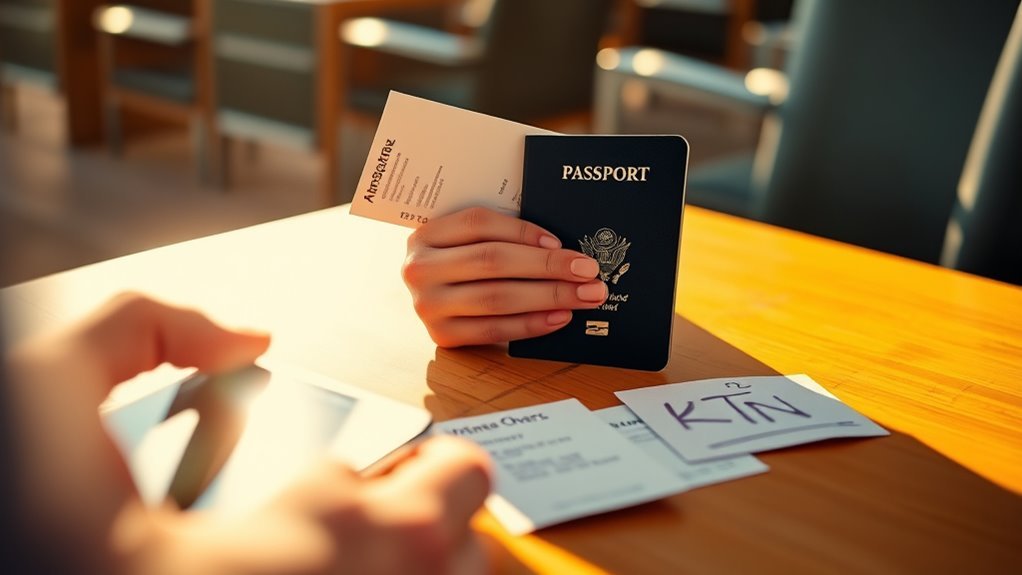
Wondering where to find your Known Traveler Number after you complete TSA PreCheck enrollment? After approval, TSA emails your KTN and includes it on your membership documentation.
Wondering where your Known Traveler Number is? TSA emails it and includes it on your membership documents after approval.
You can also log into your TSA PreCheck account on the official website; your KTN appears on your profile or membership card section.
If you enrolled through an enrollment center, you might’ve received a printed receipt with the KTN. Keep the email, screenshot, or digital card handy for easy reference.
Store the number securely—add it to your frequent flyer profiles and travel documents so you can add it to bookings when needed.
Check If Your KTN Is Already on Your AA Reservation
Now that you know where to find your KTN, check whether American Airlines already added it to your reservation—doing so saves time at check-in and helps guarantee you get TSA PreCheck benefits. Log in to your AA account or open your reservation email and look for “Known Traveler Number” or “KTN” under passenger details.
If it’s listed, confirm spelling and your name match your TSA PreCheck enrollment exactly. If anything’s off, you’ll need to correct it before travel. Follow these quick checks:
- Open your reservation on aa.com or the app.
- View passenger details or edit traveler info.
- Scan for “Known Traveler Number” or KTN.
- Verify name and KTN match TSA records.
Add KTN on the American Airlines Website
If your KTN isn’t already on the reservation, you can add it quickly on aa.com or in the American Airlines app by editing your passenger details—log in, open your booking, choose “Edit traveler info” or “Add Known Traveler Number,” enter the KTN exactly as it appears on your TSA account, and save the change to make certain TSA PreCheck gets applied to your boarding pass.
On aa.com, go to “My trips,” select the passenger, click “Edit,” locate the Known Traveler Number field, type the KTN without spaces, and save.
Check your boarding pass later to confirm the TSA PreCheck indicator appears.
Add KTN in the American Airlines Mobile App
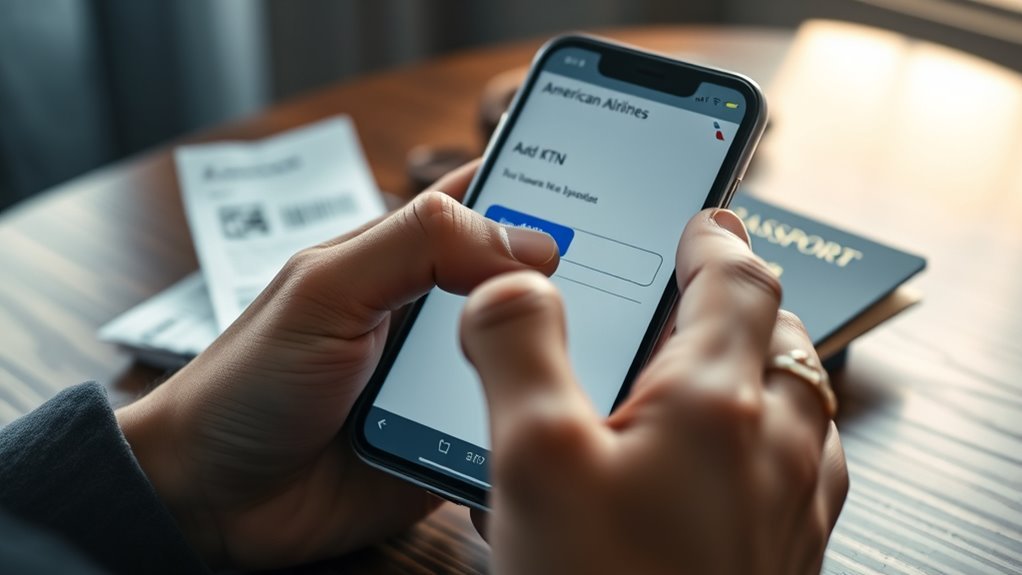
Open the American Airlines app, sign in, and tap the profile or hamburger menu to access your traveler info. From there, select the reservation or passenger profile, choose “Edit traveler info” or “Add Known Traveler Number,” enter your KTN exactly as it appears on your TSA account (no spaces), and save—your boarding pass should update with TSA PreCheck if the airline applies it.
- Go to Profiles or Trips and pick the passenger.
- Tap Edit under identification or Known Traveler Number.
- Type the KTN carefully, confirm accuracy, and save changes.
- Refresh your boarding pass or reopen the trip to see the TSA PreCheck indicator.
Update KTN When Modifying an Existing Reservation
If you need to change your KTN after booking, you can usually update it online through your reservation or by calling American Airlines.
If a web update isn’t possible, call reservations and have your KTN added to the booking before you travel.
When you arrive at the airport, double-check your boarding pass shows TSA PreCheck so you don’t encounter issues at security.
Update KTN Online
When you need to add or change your Known Traveler Number (KTN) on an existing American Airlines reservation, you can usually update it online through your booking rather than calling customer service. Log into your AAdvantage account or use the reservation lookup with your confirmation code.
Edit passenger details, paste the KTN into the TSA PreCheck field, and save changes. Confirm the update on your itinerary or boarding pass before travel.
If the option isn’t available, check mobile app updates or re-open the reservation later.
- Sign in or retrieve booking
- Select passenger details
- Enter or update KTN
- Save and verify
Add KTN By Phone
Although you can usually update your Known Traveler Number online, calling American Airlines lets you add or change your KTN while modifying an existing reservation if the web option isn’t available.
Call the reservations or AAdvantage number on your confirmation, verify your identity, and provide the KTN to the agent.
Ask them to attach it to the specific segment or the entire itinerary and confirm TSA PreCheck eligibility for upcoming flights.
Note hold times can vary; calling sooner after booking helps.
Record the agent’s name and reference number, then check your reservation online or via the app to guarantee the KTN appears.
Verify KTN At Airport
Want to confirm your TSA PreCheck at the airport? When you modify a reservation or worry your Known Traveler Number (KTN) didn’t attach, check it at the ticket counter or gate. Airline staff can view and update your booking so your boarding pass shows TSA PreCheck eligibility. Bring your ID and TSA PreCheck approval documentation.
- Show ID and KTN to the agent.
- Request they update your reservation and reissue the boarding pass.
- Verify the boarding pass displays “TSA PRECHK” or logo.
- If issues persist, contact TSA or add KTN online after the flight.
Add KTN During Seat Selection or Online Check-In
If you’re selecting seats or checking in online, you can usually add your Known Traveler Number (KTN) right on those pages so it’s applied to that reservation. Look for a field labeled “TSA PreCheck,” “Known Traveler Number,” or “Redress/KTN” during seat selection or the check-in flow.
Enter your KTN carefully, save or confirm changes, and verify that TSA PreCheck appears on your boarding pass.
If you have multiple passengers, add each person’s KTN under their name.
Keep a copy of your boarding pass and confirmation; that verifies TSA PreCheck was attached before you arrive at the airport.
What to Do If the Website or App Won’t Save Your KTN
When the American Airlines website or app won’t save your Known Traveler Number, try a few quick fixes before calling support. Clear cache, restart the app or browser, and sign in again to force a refresh.
Confirm your KTN matches your traveler profile exactly — small typos block saving.
If you booked through an agency, the airline site may reject edits; use the booking’s reference.
Finally, switch devices or use the mobile web version; sometimes platform bugs prevent updates.
If none of these work, you’ll need a different route to get the KTN attached to your reservation.
Call American Airlines: What to Tell an Agent to Add Your KTN
Call American Airlines and be ready to give your full name exactly as on the reservation, your date of birth, and your Known Traveler Number (KTN).
Tell the agent you want your KTN added for TSA PreCheck to this specific booking and confirm which segments they’ve applied it to.
Ask the agent to read back the updated passenger details and reservation number so you can verify the change.
What To Say
Because agents handle many different requests, be clear and concise when you ask them to add your Known Traveler Number (KTN) to a reservation.
Tell the agent you want TSA PreCheck applied and provide the booking reference and KTN when prompted.
Speak slowly, confirm spelling, and listen for the agent to repeat the KTN back. If they don’t, ask them to recheck the reservation and confirm that the Secure Flight indicator now shows TSA PreCheck.
- State purpose: add KTN for TSA PreCheck.
- Give booking reference and KTN.
- Confirm spelling and numbers.
- Ask agent to verify update.
Required Passenger Details
If you’re speaking with an American Airlines agent, have these passenger details ready so they can correctly add your Known Traveler Number: your full legal name exactly as it appears on your ID, date of birth, gender, booking reference (record locator), and the KTN itself.
Also be ready to confirm the travel date and flight number if asked. Speak clearly, spell unusual names, and provide any middle name or initial shown on your ID.
If you booked for someone else, confirm your authority to make changes. Ask the agent to read back the KTN and confirm TSA PreCheck appears on the boarding pass.
At the Airport: Where to Go and What to Show the Agent
When you arrive at the airport, head to the TSA PreCheck or expedited security lane signs and have your boarding pass and ID ready to show the agent; they’ll scan your boarding pass to confirm your Known Traveler Number (KTN) is applied and verify your government ID.
Follow the agent’s direction: use the marked lane, remove only permitted items, and be ready for any secondary checks.
If the KTN isn’t showing, stay calm and ask the agent to verify your reservation. Keep documents handy to avoid delays.
- Present boarding pass and government ID.
- Use the TSA PreCheck lane.
- Follow agent instructions.
- Ask politely if KTN isn’t applied.
Add KTN via Travel Agents and Third-Party Booking Sites
If you booked through a travel agent or third-party site, tell your agent you have a Known Traveler Number and ask them to add it to your reservation.
Give them the exact KTN and your passenger details so they can apply it correctly.
After they update the booking, confirm the change by checking your itinerary or contacting the airline directly.
Inform Travel Agent
Since travel agents and third-party sites often handle reservations for many passengers, tell your agent your Known Traveler Number (KTN) as soon as you book so they can add it to your American Airlines reservation and make sure you get TSA PreCheck.
Prompt communication prevents missed updates and helps the agent match your KTN to the correct passenger profile. Confirm the KTN was entered, and ask how they transmit traveler data to the airline.
If changes occur, notify the agent immediately so they can update the booking and resend confirmations showing TSA PreCheck eligibility.
- Provide KTN promptly
- Verify entry
- Ask transmission method
- Update on changes
Provide Known Traveler Number
Although you may not be handling the booking directly, give your Known Traveler Number (KTN) to your travel agent or the third-party site as soon as you have it so they can add it to the reservation and guarantee TSA PreCheck eligibility.
Provide the full KTN, your full name as on ID, and date of birth to avoid mismatches. Use secure channels—phone, encrypted portal, or the booking site’s secure profile area.
Ask the agent to enter it under the passenger details or frequent traveler field. Keep a copy of the confirmation or screenshot showing the KTN attached to the reservation for your records.
Confirm Booking Update
After you provide your KTN to the agent or third-party site, confirm that it was actually added to the reservation. Don’t assume it’s done—errors happen. Verify immediately and again after any change.
- Ask the agent to show the booking record with your KTN visible.
- Check the confirmation email or the third-party account for the Known Traveler Number field.
- Call the airline with your record locator to verify the KTN is in the passenger data.
- Recheck online check-in or your boarding pass; TSA PreCheck should appear if the KTN matched correctly.
How Group or Multi-Passenger Bookings Handle KTNs
How do you add Known Traveler Numbers (KTNs) when booking for a group? When you enter passenger details during booking, add each traveler’s KTN in their individual traveler fields.
When booking a group, enter each traveler’s Known Traveler Number in their individual passenger fields during checkout.
If an online form lacks separate KTN spots, finish the reservation then edit each passenger’s information in Manage Reservations or call American Airlines to add KTNs for everyone.
For multi-passenger itineraries, confirm each boarding pass reflects TSA PreCheck after check-in; sometimes only eligible passengers show the PreCheck indicator.
Keep a list of each traveler’s full name and KTN to avoid mismatches and ensure every eligible person receives the benefit.
Link KTN to Your AAdvantage Profile for Future Trips
Since managing KTNs for multiple travelers can be a bit tedious, save time by linking your Known Traveler Number to your AAdvantage profile so it automatically populates future bookings.
Go to aa.com, sign in, and open “My Account” to edit your personal details.
Add your KTN under secure traveler information and confirm the name matches your TSA enrollment.
Once saved, new reservations that use your AAdvantage number will include the KTN if the passenger name matches.
Check saved profiles for accuracy and update after any name changes to keep TSA PreCheck eligibility consistent.
- Sign in to aa.com
- Open My Account
- Add KTN to secure traveler info
- Verify name matches TSA records
Make KTN Your Default for New American Reservations
When you set your Known Traveler Number as the default, American will automatically add it to new reservations so you don’t have to enter it every time.
Update the KTN in your AAdvantage profile and in the Wallet section of the app to make certain it’s saved across bookings. That way your KTN stays on file for future trips and speeds up check-in.
Set Your Known Traveler
If you want TSA PreCheck to be applied automatically to future American Airlines reservations, add your Known Traveler Number (KTN) to your AAdvantage account and set it as the default for new bookings.
- Sign in to your AAdvantage profile on aa.com or the app and go to “Personal information.”
- Find the Known Traveler Number field, enter your KTN exactly as issued, and save changes.
- Enable the option that applies this KTN to new reservations or mark it as the default traveler credential.
- Confirm by booking a dummy reservation or checking upcoming bookings to make certain TSA PreCheck appears on your boarding pass.
Update Profile In Wallet
After adding your KTN to your AAdvantage profile, make it the default in your mobile wallet so new American reservations pick it up automatically. Open your phone’s wallet app, select your American Airlines boarding pass template or airline account card, and tap Edit or Settings.
Choose the passenger profile that contains your KTN and enable it as the default payment/passenger profile for new passes. Save changes and sign out then back into the American app if needed to refresh.
Future boarding passes generated to your wallet should carry your default profile, which helps guarantee TSA PreCheck eligibility appears on new reservations.
Save KTN For Future
So you’ll want to save your Known Traveler Number (KTN) as the default in your AAdvantage profile so every new American Airlines booking automatically includes it. Doing this saves time and reduces missed TSA PreCheck benefits.
Sign in, edit profile, and add your KTN under personal details. Verify it’s linked to the right birthday and redress number if applicable. After saving, new reservations should pull the KTN automatically, but always confirm during checkout.
- Sign in to your AAdvantage account.
- Go to Profile > Personal Details.
- Enter and save your KTN.
- Confirm on new bookings.
Special Cases: International Itineraries and KTN Rules
When you’re booking international flights, TSA PreCheck rules can get trickier than on domestic trips, so it’s important to know how Known Traveler Numbers (KTNs) apply across multi-carrier itineraries, codeshares, and connecting airports.
You should always add your KTN to the reservation leg operated by a U.S. carrier; that leg is most likely to trigger PreCheck at U.S. security. If an international partner issues the ticket, ask the carrier to include your KTN.
For connections in the U.S., PreCheck can apply if the screening falls under TSA jurisdiction. Keep boarding passes and check with agents at check-in.
When TSA PreCheck Should Appear on Your Boarding Pass
You should see TSA PreCheck printed on your boarding pass once your Known Traveler Number is matched to your reservation and the flight is eligible.
It can show up on both digital and printed passes, though mobile boarding passes sometimes display it differently or more prominently.
If it’s missing, common causes are a mismatched KTN, ineligible itinerary, or booking class issues, so double-check your reservation and call American if needed.
When It Appears
If you’ve added your Known Traveler Number (KTN) to an American Airlines reservation correctly, TSA PreCheck will usually show up on your boarding pass as soon as your ticket is issued or when you check in online—typically 24 hours before departure.
You’ll also see it appear when the airline confirms TSA eligibility after seat assignment or upgrade. Watch your reservation and check-in flow; changes can update the boarding pass.
- Immediately after ticketing, if KTN matches passenger name.
- During online check-in, about 24 hours before flight.
- After seat assignment or gate changes.
- When American revalidates traveler data.
Digital Versus Printed Pass
Although the format differs, TSA PreCheck should appear on both digital and printed boarding passes as long as your Known Traveler Number is in the reservation and the airline has marked you as eligible.
On mobile wallets or airline apps you’ll typically see a Pre✓® symbol or the words “TSA PreCheck” near your flight details.
Printed passes show the same indicator—often in the section with boarding group and seat. Keep the image or print legible; gate agents and TSA rely on that marking.
If you switch devices or reprint, confirm the indicator remains so you won’t lose expedited screening access.
Reasons It May Be Missing
Even when your TSA PreCheck indicator shows on both digital and printed passes, it can still disappear from a boarding pass that should have it. You’ll want to check several common causes so you’re not surprised at the security checkpoint. Often the missing mark is a simple data mismatch, but other issues can block the code from printing.
- You entered an incorrect or missing Known Traveler Number when booking or during check-in.
- Your name on the reservation doesn’t exactly match your TSA enrollment name.
- The airline’s systems didn’t receive your KTN due to a sync or timing error.
- Some international or codeshare flights aren’t eligible for PreCheck.
Why PreCheck Might Not Show Even With a Saved KTN
Sometimes your boarding pass won’t show TSA PreCheck even though you’ve already saved your KTN to your American Airlines profile. This can happen if your KTN isn’t attached to that specific reservation, your name on the reservation doesn’t exactly match the name in TSA records, or you used a different frequent flyer account when booking.
Airline systems sometimes take time to sync KTN data, especially with recently added numbers. Certain partner-operated flights, codeshares, or international itineraries may not transmit PreCheck eligibility.
Also, expired or blocked KTNs won’t pass validation. Check details and timing before assuming PreCheck will appear.
What to Do at Security If PreCheck Is Missing From Your Pass
If your boarding pass doesn’t show TSA PreCheck at security, stay calm and be prepared to present your KTN and ID to the officer — you can request they verify your eligibility manually.
Tell the officer you have PreCheck and hand over your ID and Known Traveler Number. If they confirm, they’ll let you use the PreCheck lane or mark your pass.
Tell the officer you have PreCheck and present your ID and KTN—if confirmed, you’ll be allowed the PreCheck lane.
- Politely state you have TSA PreCheck and show your ID and KTN.
- Ask the officer to verify eligibility in their system.
- If allowed, proceed through the PreCheck lane as directed.
- If denied, accept directions and ask how to follow up later.
How Airlines and TSA Match Names to KTNs (Name Format Tips)
When the officer checks your KTN, the match they’re really looking for is between the name on your reservation and the name tied to your TSA enrollment. Airlines and TSA use specific formatting rules, so small differences can block an automatic match.
You should use your full legal name as enrolled: given name, middle initial (if included), and surname. Don’t add punctuation, titles, or prefixes in the reservation.
Hyphens, apostrophes, and suffixes (Jr., III) may be handled differently; check how your airline displays them. Consistent spacing and order matter—use the exact sequence that appears on your TSA confirmation.
Fixing Name Mismatches Between Your KTN and Booking
Because airlines and TSA require an exact name match to apply your KTN, you’ll need to correct any discrepancies before travel to avoid losing PreCheck benefits. Check your booking name against your Known Traveler Number record now. If you find a mismatch, act promptly—small differences like hyphens, middle initials, or suffixes matter.
Because PreCheck needs exact name matches, check and fix any hyphens, initials, or suffixes before travel.
- Compare booking name to TSA/Trusted Traveler profile exactly.
- Edit your reservation online or call American Airlines for minor fixes.
- Update your TSA profile via Trusted Traveler (TSA) if that record is wrong.
- Keep documentation (ID, approval letter) handy when requesting corrections.
Renewed or Expired PreCheck: Updating Your KTN Info
Check your KTN status on the TSA website to see if it’s still active.
If your PreCheck membership expired and you renewed, update the KTN on your American Airlines profile or reservation.
Then confirm the updated KTN is linked to your current booking so you’ll receive PreCheck at the airport.
Check KTN Status
Not sure if your TSA PreCheck is still valid? Check your KTN status quickly so it appears on American Airlines reservations. Use these steps to confirm and act before booking or check-in:
- Visit the TSA PreCheck enrollment website and enter your KTN to see expiration details.
- Log in to your trusted traveler account (if you have one) to view renewal dates and status messages.
- Confirm your name and date of birth match exactly with your airline profile to avoid mismatches.
- If you find discrepancies, note them and prepare documentation so you can correct records before travel.
Update Expired KTN
Renewed your TSA PreCheck or let it lapse? If your KTN changed after renewal, update it in your American Airlines profile and on upcoming reservations. Don’t wait—mismatched KTNs can strip PreCheck benefits at the airport. Edit your profile online or in the app, then reapply the correct KTN to each booking that hasn’t yet started check-in. If a reservation is already checked in, contact AA reservations for help.
| Action | Where to do it |
|---|---|
| Update profile KTN | aa.com / app |
| Edit existing booking | Manage trips or call |
Confirm Reservation Link
After you update your profile KTN, confirm each upcoming reservation actually shows the correct number by using the reservation link on AA.com or in the app. Check every booking after renewing PreCheck so you won’t face last-minute boarding issues.
Use the reservation link to view traveler details, edit KTN entries if needed, and save changes. If a reservation still lacks your KTN, contact AA or re-enter the number directly on the reservation screen.
- Open your reservation link and view passenger details.
- Verify the KTN field matches your updated number.
- Edit or add the KTN on that page.
- Save and recheck confirmation.
Common Technical Errors on the AA Website or App and Fixes
Because glitches happen, you’ll occasionally run into errors when trying to add TSA PreCheck on the American Airlines website or app—pages that won’t load, fields that won’t save, or the system failing to recognize your Known Traveler Number.
First, clear your browser cache or force‑quit and reopen the app; that often fixes stale session issues. Switch browsers or use incognito/private mode to bypass extensions.
Confirm your KTN matches your reservation name exactly, then reenter and save.
If a server error appears, wait a few minutes and retry.
Contact AAdvantage customer service with your reservation and KTN if problems persist.
Timing: When to Add a KTN Before Departure
If troubleshooting doesn’t fix the problem and you need to add your Known Traveler Number, know that timing matters: add your KTN as soon as you book if possible, since airlines can only pass the indicator to TSA once the number’s linked to a confirmed reservation.
Don’t wait until airport check-in; systems sync best overnight, and some partner bookings take longer. If you booked through a third party, add KTN in the airline profile and the reservation.
Don’t wait until check-in — systems sync overnight and partner bookings can take longer, so add your KTN to both profile and reservation.
If late, contact the airline immediately to update the record — sometimes agents can force the match before departure.
- Add KTN at booking
- Update airline profile
- Check reservation confirmation
- Call airline if late
Evidence to Bring If PreCheck Is Denied at Security
When TSA PreCheck doesn’t show up on your boarding pass, have quick proof ready: bring your Known Traveler Number confirmation (or membership card), the credit-card or loyalty account that shows your KTN in profile, and the flight reservation with your name matching the TSA record so agents can verify and update the manifest. Carry a photo ID, any TSA enrollment receipt, and screenshots of your airline profile showing the KTN. Present these calmly to the agent; they can often validate you onsite. If needed, ask the agent to note the verification on your reservation for future flights.
| Item | Purpose |
|---|---|
| KTN confirmation | Proof of enrollment |
| Membership card | Backup ID |
| Airline profile screenshot | Shows KTN linkage |
| Boarding reservation | Confirms flight/name match |
Verify PreCheck on Boarding Pass Images and Screenshots
After you show agents your enrollment proof, check your boarding pass image or screenshot to confirm TSA PreCheck appears where it should — usually as “TSA PRE✓” near your name or as a PreCheck icon. Do this before you leave home and again at the airport kiosk. If it’s missing, don’t assume denial—verify your Known Traveler Number is in the booking.
- Open the mobile wallet or airline app and view the boarding pass clearly.
- Zoom in on the name and status area for the PreCheck marker.
- Compare the display to American Airlines’ sample boarding passes.
- Contact gate agents immediately if the marker isn’t visible.
Privacy: Who Can See Your KTN and Why It’s Safe
Because your Known Traveler Number (KTN) links only to limited travel data, you don’t need to worry that it exposes your full identity: airlines and TSA use it to match your PreCheck status with your reservation and boarding pass, not to share personal details broadly.
Only authorized personnel and systems access your KTN: airline reservation systems, TSA verification systems, and airport security staff during screening.
The number itself doesn’t reveal financial or medical data.
Organizations must follow privacy and security rules when storing or transmitting KTNs, and misuse is rare.
You can ask airlines how they protect traveler data if you’re concerned.
Tips to Avoid Repeating the KTN Addition Process
Save your KTN to your American Airlines profile so you don’t have to re-enter it for each booking.
When you book, confirm your KTN is attached to the reservation before paying.
If you manage multiple trips, sync your profile across reservations or link frequent flyer accounts to keep the KTN consistent.
Save KTN To Profile
Want to stop entering your Known Traveler Number every time you book? Save your KTN to your American Airlines profile so it auto-populates future reservations. Log in, go to your account settings or personal details, and add the KTN under secure traveler information. Verify it’s linked to the correct traveler and name format.
- Enter KTN once in your profile.
- Match name exactly as on TSA documents.
- Save changes and log out to confirm persistence.
- Update immediately if your KTN or name changes.
This prevents repeated entry and keeps TSA PreCheck applied across bookings.
Confirm During Booking
If you checked that your Known Traveler Number is already in your profile but still want extra assurance, confirm the KTN during checkout so it applies to this specific reservation.
At the passenger details step, review the TSA PreCheck field and verify the KTN displays next to the traveler’s name. If it’s missing, add it manually in the reservation form rather than relying on profile defaults.
Double-check for typos and correct name format (match government ID). Before payment, scan the itinerary summary to verify the KTN appears.
Doing this prevents having to edit or rebook later to get PreCheck benefits.
Sync Across Reservations
After confirming your KTN on the current booking, make it easier on future trips by syncing that number across reservations and travelers in your AAdvantage profile. Update your profile once and you won’t need to edit each reservation.
- Sign in to aa.com and open your AAdvantage account settings.
- Add or edit the Known Traveler Number field for yourself and family members.
- Check upcoming reservations to confirm the KTN populates automatically; edit if it doesn’t.
- For group bookings, verify each traveler’s profile is linked to their reservation so the KTN flows through.
Best Practices for Family Bookings and Children’s KTNs
When you’re booking travel with kids, adding every child’s Known Traveler Number (KTN) to their passenger record guarantees they can use TSA PreCheck with you and avoids last-minute hassles at the airport. You should confirm KTNs match names exactly, enter them on each ticket, and check boarding passes for the TSA PreCheck indicator. If one child lacks a KTN, plan for standard screening or enroll them early. Bring proof of enrollment and IDs. Keep bookings linked so family lanes stay together. Calm, prepared steps save time and stress when you travel with little ones.
| Calm | Relief |
|---|---|
| Hope | Joy |
| Trust | Ease |
| Safety | Together |
| Ready | Peace |
When to Contact TSA vs. American Airlines for Help
Because issues with TSA PreCheck can stem from enrollment, security alerts, or boarding-pass errors, you’ll want to pick the right contact to resolve problems quickly.
If your Known Traveler Number isn’t in the government system or your status shows pending, contact TSA Enrollment for verification and approval timelines.
If you get a random exclusion at checkpoint or have security-related flags, reach TSA for resolution.
For booking-related mistakes, incorrect passenger data, or missing KTN on your itinerary, contact American Airlines to update the reservation.
For airport-day confusion about lanes or signs, ask airline staff first so they can coordinate with TSA.
Pre-Flight Checklist: Confirm KTN, Name, and Boarding Pass
Now that you know who to contact for enrollment or booking issues, run a quick pre-flight check to make sure your Known Traveler Number (KTN), passenger name, and boarding pass all match.
Confirm your KTN appears in your reservation and on the boarding pass; if it’s missing, add it via your AA account or call reservations.
Verify the passenger name matches your government ID exactly—no nicknames or missing initials.
Check that boarding pass details (flight number, date, and passenger) align with the reservation.
Resolve any discrepancies before arriving at the airport to avoid delays or denied TSA PreCheck benefits.
Quick-Reference Table: Add/Update KTN by Method and Outcome
If you need a quick decision aid, use this table to see at a glance how to add or update your Known Traveler Number (KTN), which method works best for each booking stage, and what outcome to expect so you can avoid surprises at security.
- Online manage booking — Add KTN immediately; instant boarding pass update usually; TSA PreCheck appears if name matches.
- Mobile app — Edit passenger details; quick sync to boarding pass; expect same-day update in most cases.
- Airport check-in kiosk — Add KTN at kiosk; prints updated boarding pass; PreCheck may appear at lane.
- Gate agent — Ask agent to add KTN; manual entry can resolve mismatches; outcome depends on real-time TSA lookup.
Frequently Asked Questions
Can I Link My KTN to Other Family Members Under One Reservation?
Yes — you can add your KTN to other family members on one reservation if each traveler’s name and DOB match their Known Traveler profile; you’ll update each passenger’s redress/KTN field when managing the booking online or with the airline.
Does TSA Precheck Status Transfer on Codeshare Flights With Partner Airlines?
Yes — your TSA PreCheck status can appear on codeshare flights, but it depends. You’ll need your Known Traveler Number in the operating carrier’s reservation, and the airline must transmit it correctly for the boarding pass to show PreCheck.
Will TSA Precheck Be Recognized for Elite or Upgrade Priority Boarding?
TSA PreCheck won’t grant elite or upgrade priority boarding; you’ll keep whatever boarding group your elite status or upgrade provides. If your boarding group includes PreCheck lanes, you’ll use them, but PreCheck alone doesn’t change priority.
Can I Use Global Entry Membership Number Instead of TSA Precheck KTN?
Yes — you can use your Global Entry PASSID instead of a TSA PreCheck KTN; just enter your Known Traveler Number (your PASSID) into your American Airlines reservation before check‑in so TSA PreCheck eligibility applies.
How Does Changing Passenger Gender or DOB Affect My Saved KTN?
Changing a passenger’s gender or date of birth can break the KTN match, so you should update the KTN after edits. Don’t assume it’ll stay valid; verify the Known Traveler Number is still attached to the reservation.
Conclusion
You’re all set to add TSA PreCheck to your American Airlines booking—just grab your Known Traveler Number, confirm your reservation name matches your ID, and update the KTN online, in the app, at check-in, or by calling AA. For families, include every traveler’s KTN. If something’s missing on your boarding pass, contact AA first; reach out to TSA only for enrollment or KTN issues. Double-check before you head to the airport for smooth screening.